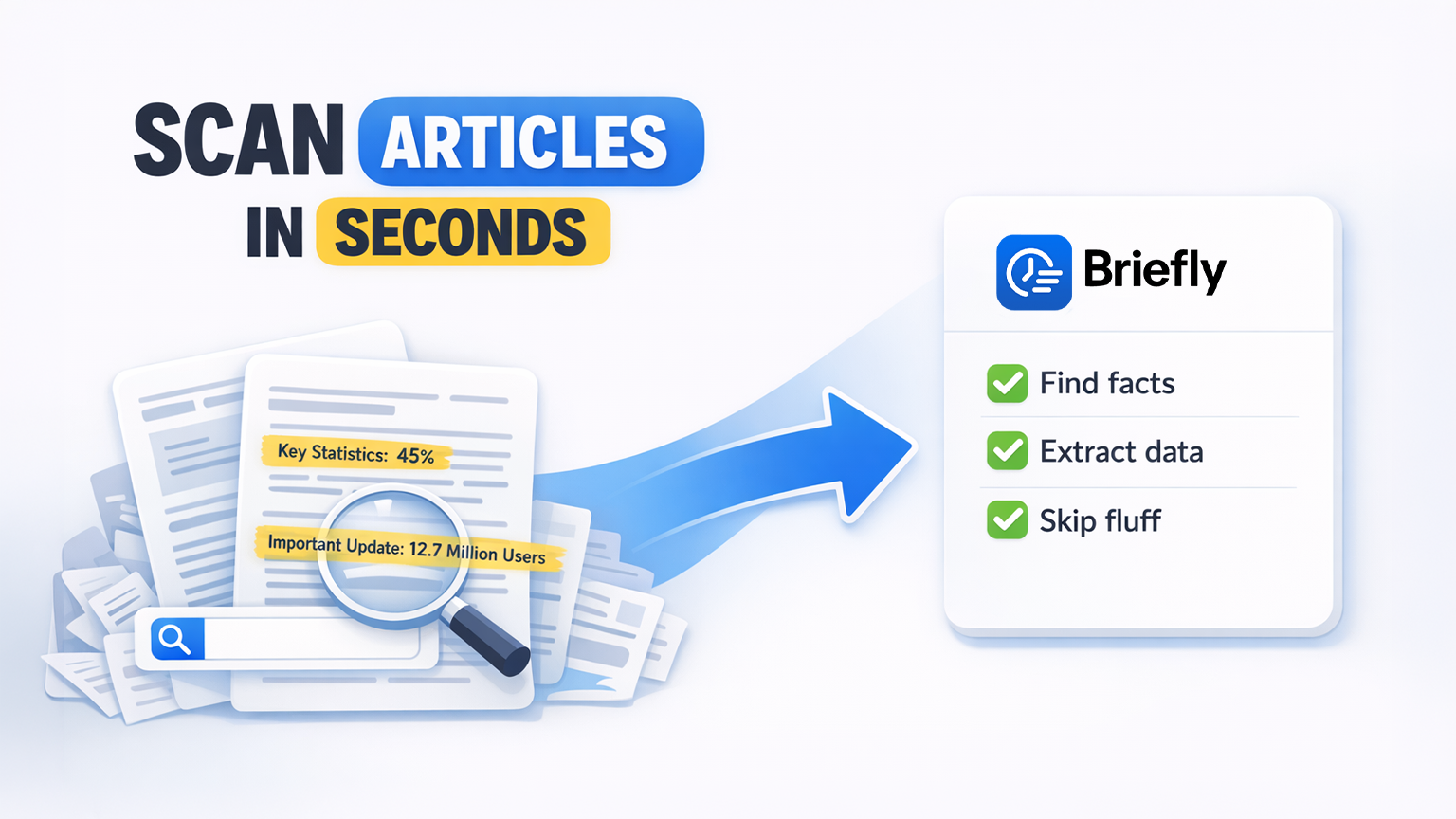
How to Use AI to Scan Articles for Specific Information

How to Use AI to Scan Articles for Specific Information

There are times when you are not reading an article for leisure; you are reading it to find a very specific piece of data. Perhaps you are a marketer looking for a single statistical trend hidden inside a massive annual report, or an engineer searching for one line of documentation buried in a tech blog. Manually scanning 5,000 words looking for a keyword is an inefficient use of brainpower.

The Inefficiency of CTRL+F (Find)

While the “Find” function is useful, it requires you to know the exact phrasing the author used. If you search for “revenue” but the author wrote “Q4 profits,” you will miss the data completely. True scanning requires an understanding of context, not just exact string matching.

The Briefly Approach: Contextual Summarization

Artificial intelligence understands semantic meaning, making it the perfect tool for extracting specific data. By running long-form content through Briefly, you force the AI to do the scanning for you.

How to Scan and Extract Like a Pro:

  1. Offload the Document: Instead of opening the lengthy article or blog post in your browser, process it through Briefly.
  2. Analyze the Structured Output: Briefly doesn’t just cut words; it structures the output into logical headings and bullet points based on the actual concepts discussed in the text.
  3. Locate the Data: Because the AI has already extracted the core arguments, statistics, and conclusions into a 300-word digest, you can instantly spot the specific information you were looking for without reading the surrounding fluff.

Use New Summary for Manual Website Summaries

Not every article you need to scan will come from a source you already follow. Sometimes a colleague sends you a one-off research link, you find a dense industry report through Google, or you land on a technical blog post that contains one answer you need right now. For those moments, Briefly’s manual summarization workflow lets you summarize websites on demand.

How the New Summary Button Helps:

  1. Open New Summary: From your Briefly dashboard, click the New Summary button to start a manual website summary.
  2. Paste the Article URL: Add the link to the web article, blog post, documentation page, or report you want to scan.
  3. Let Briefly Extract the Signal: Briefly reads the page and turns the long text into a focused summary, making important facts, arguments, and takeaways easier to find.
  4. Search the Summary Instead of the Whole Page: Once the manual summary is ready, you can review a shorter, structured version of the article and quickly locate the detail you originally needed.

Work Faster and Smarter

Stop doing manual labor that a machine is designed to do. When you need specific data from a broad text, use Briefly to summarize the content first. You will find what you need in seconds rather than minutes.

    Leave a Reply

    Your email address will not be published. Required fields are marked *

    Briefly AI Logo
    © 2026 Briefly AI.
    Briefly AI is a part of Ascension.